
Smart, Safe, and Online: Digital Citizenship for Texas Online School Students
Students don’t just use technology for schoolwork. A real share of their social lives happens online, and for a virtual school student the screen is also the classroom. In Pew Research Center's 2025 survey of U.S. teens, about one in five said they are on TikTok or YouTube almost constantly, and roughly three in ten use an AI chatbot every day.
Digital citizenship is the set of habits that lets a student use that screen safely, respectfully, and on purpose. Like any life skill, it’s taught early, often, and by example.
At TXVS, students in eSchool Prep (K-8) and Lone Star Virtual Academy (9-12) learn from home, which puts Texas families in an interesting spot this year. The state's new classroom phone law was written for school buildings, and a TXVS school day doesn't happen in one. Our guide to how communication drives success in online learning covers who to contact at school; this post covers how to keep every screen safe and purposeful.
You don’t need to be a technical expert to raise a good digital citizen. You need consistent conversations, guardrails that match your student's age, and curiosity about their online world. October is Cybersecurity Awareness Month, which makes this week a convenient excuse to have the passwords talk.
What Is Digital Citizenship for Texas Online School Students?
Digital citizenship is the set of skills and habits that help a student navigate the online world safely, ethically, and productively. For a virtual school student, it also means using school platforms well, staying focused when a lesson lives in a browser, and knowing exactly who to tell when something feels wrong.
Most families find it easiest to think about in three parts:
Safety: protecting passwords, personal details, location, and recognizing when someone online is not who they claim to be.
Respect: writing to classmates and teachers the way you would speak to them face to face, in chats, discussion boards, and comments alike.
Judgment: deciding what to trust, what to share, and when to log off.
Why Online Safety Looks Different For Virtual Students
Online safety looks different in virtual school because the family, not a school building, sets the device rules. According to the National Conference of State Legislatures, 42 states plus Washington, D.C., and Puerto Rico have now enacted laws on student cellphone use in schools. Those rules work because a building enforces them: a pouch, a locker, a teacher at the door.
At home, the enforcement is you. That is more work. It is also the advantage, because the rules can fit your student instead of a classroom.
TXVS still does its part. We manage our secure learning platforms for our students, and help is close: the TXVS support portal handles login and access issues, and you can contact them any time something looks off.
Knowing where the school's responsibility ends and yours begins is the first piece of digital citizenship for any virtual school family.
How Much Screen Time Is Okay for an Online School Student?
There is no single correct number of hours. The American Academy of Pediatrics' 5 Cs of Media Use move the question away from hour counts and toward whether screens are crowding out what your family values, like sleep, movement, and time together. For a virtual school family, learning screen time is a given. The challenge is balance.
The AAP's free Family Media Plan tool can help you put that balance in writing. These three habits make it work day to day.
Separate Learning Screens From Leisure Screens
School hours on the laptop are one thing; gaming and videos after school are another. Separating devices builds the self-awareness behind good screen-life balance for virtual students.
Build Screen-Free Windows Into the School Day
Meals, the hour before bed, and time outside are the low-conflict places to start. A school day with real breaks already has these windows built in; see a daily schedule with built-in breaks for a model. For teens, the AAP's 5 Cs guidance for older teens suggests charging the phone across the room overnight.
Review Device Dashboards Together
Most phones, tablets, and laptops include a screen-time dashboard. Review it together instead of imposing a limit from it: ask what surprised them, what felt worth it, and what they would change. Keep the rule for the whole family, adults included. Kids notice.
How Do I Teach My Student to Be Safe Online? Five Rules for Every Age
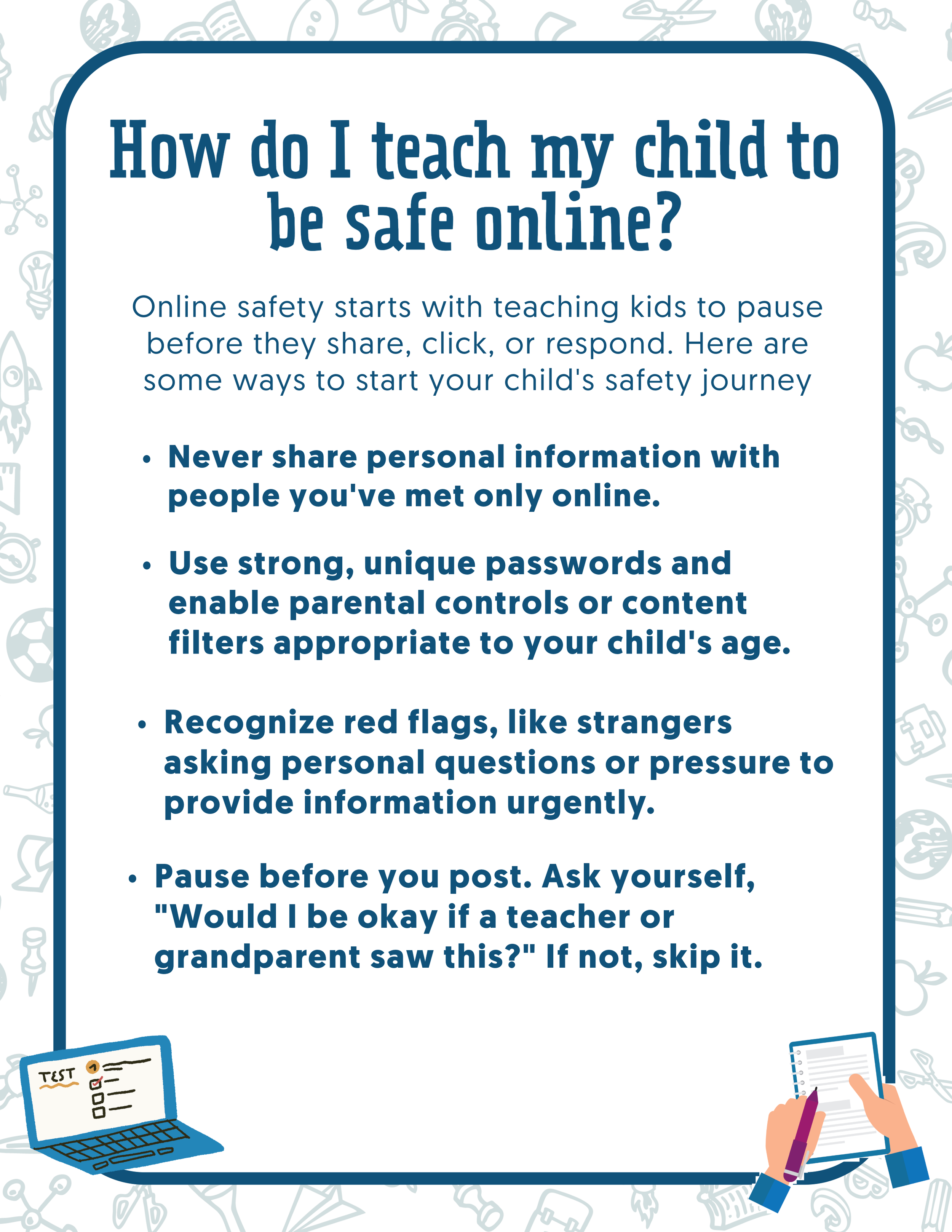
Online safety for kids starts with one reflex: pause before you share, click, or reply, and bring anything odd to a trusted adult. The five rules below hold at every age, only the conversation around them grows up.
Keep Personal Information Off the Internet
Full name, home address, school name, and location stay private from anyone your student knows only online. For a virtual school student, that also includes the portal login and anything visible on screen during a live session.
Think Before You Post
One family rule covers most situations: would you be okay with a teacher or a grandparent seeing this?
Use Strong Passwords and Age-Appropriate Filters
Use a unique password for every account, a password manager for teens, and parental controls matched to age. School accounts count too. A guessable portal password is an easy weak point to overlook in a virtual school household.
Know the Red Flags
Teach your student to notice and report:
Strangers asking personal questions
Requests to keep a conversation secret
Pressure to move to a different app or private chat
Offers of gifts, money, or game currency
Keep the Door Open
Kids report what they see when they know it will not cost them their device. Say it out loud, and mean it: coming forward is never punished, even if they were somewhere they were not supposed to be.
Online Safety for Kids by Grade Level
The rules stay the same as students grow. What changes is how much independence they get and what you talk about.
| Grade band | The device rule | The conversation |
|---|---|---|
| K-5 eSchool Prep | Devices stay in shared spaces. Unfamiliar messages go to a trusted adult right away. Downloads need a yes first. | What is private, what is kind, and who to tell. |
| 6-8 eSchool Prep | Shared spaces for schoolwork, a device bedtime, and parental controls on. First group chats and accounts happen here. | Real scenarios: What would you do if a friend posted something cruel about a classmate? |
| 9-12 Lone Star | A weekly check-in, not a device inspection. Controls loosen as judgment shows. | Digital footprint, misinformation, and reporting, handled as a peer rather than a suspect. |
Texas Law and Phones in Virtual School
Texas's House Bill 1481, passed in 2025, requires school districts and open-enrollment charter schools to adopt policies barring students from using personal phones, tablets, and smartwatches on school property during the school day. Devices the school itself provides are exempt. For a TXVS student, the school day happens at home, so the rule that matters most is the one your family writes.
The state's rule makes a solid template. Here is how it translates by program:
eSchool Prep households (K-8): the school laptop is the only screen during lessons. Phones and tablets stay in another room, devices live in shared spaces, and an adult holds the passwords.
Lone Star Virtual Academy households (9-12): the phone sits out of reach during live sessions and comes back at a set time. A weekly check-in replaces device inspections as your student shows good judgment.
Texas has also tried to regulate minors' online accounts. The SCOPE Act (House Bill 18), passed in 2023, aims to limit what platforms can collect from and show to users under 18. A federal judge blocked several of its provisions while the state appealed, KERA News reported, though the requirement that platforms offer parental supervision tools was not part of that challenge.
The practical takeaway: don't wait for a law to do the supervising. The parental tools already built into most apps are worth turning on today.
How Should Digital Citizenship Conversations Change in Middle and High School?
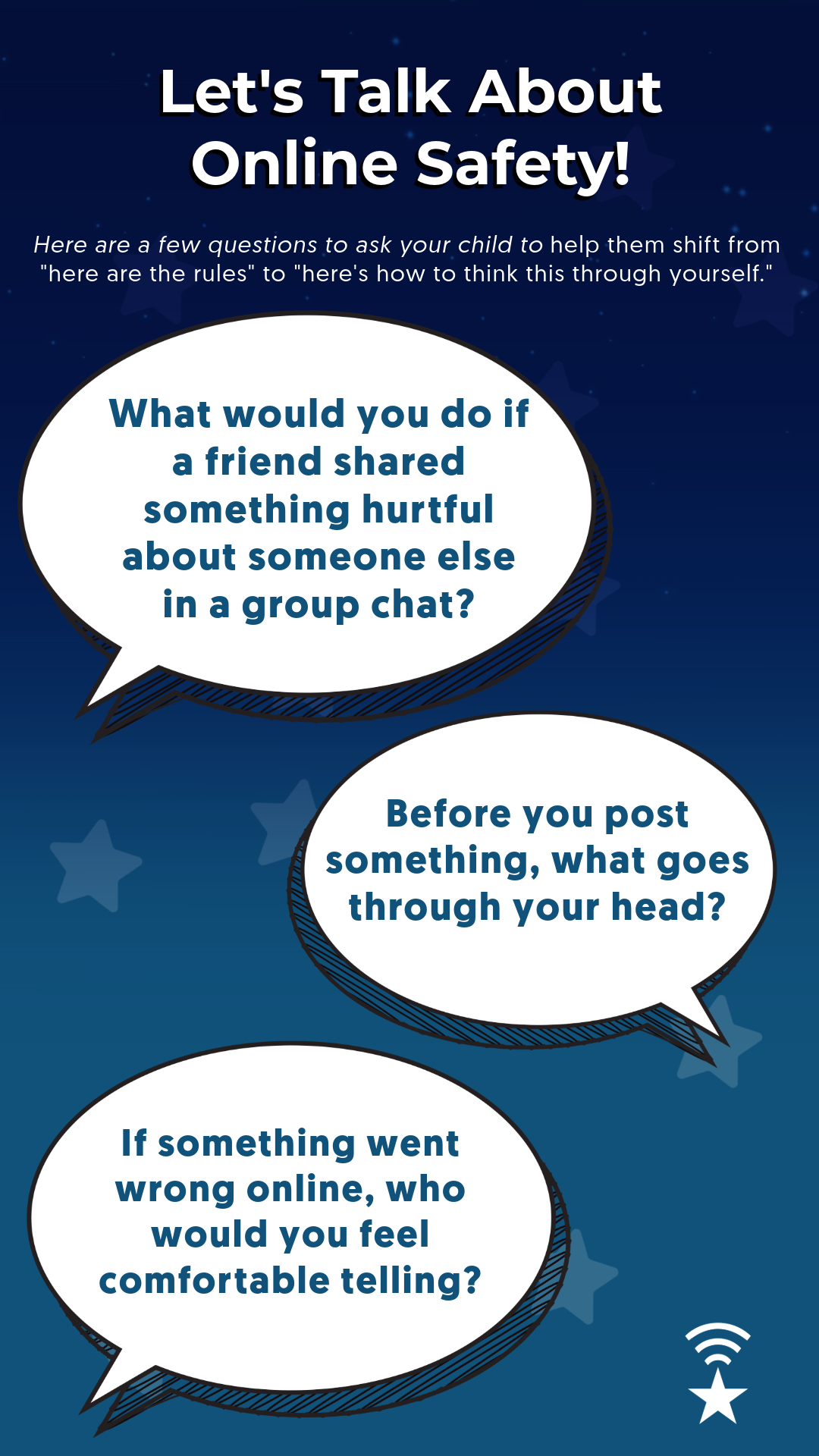
In middle and high school, the conversation shifts from "here are the rules" to "here is how to think it through." Older students will spend time in group chats and online communities no adult supervises, so internalized judgment does more work than any restriction. This is also the age to add healthy skepticism: question sources, recognize misinformation, and ask who benefits when a post goes viral.
Talk Through Real Scenarios
Skip the hypotheticals and ask what they would do if a friend shared something hurtful about a classmate in a group chat, or if an AI chatbot gave them an answer that seemed off. Then mention the digital footprint once, without a lecture: what a student posts now can be seen later by teachers, coaches, admissions readers, and employers.
Cyberbullying: Reporting Is Not Snitching
Snitching gets someone in trouble. Reporting gets someone out of it, including yourself. Online clubs and class chats run better when students know the difference; see how Texas students build community in online school.
What to Do When Something Goes Wrong Online
When something goes wrong online, stay calm, thank your student for telling you, and work through it in order. StopBullying.gov recommends the same core moves: don't respond, keep evidence, block, and report.
Preserve, then block. Screenshot the message with the date and username visible, block the account, and do not reply.
Tell the school if a classmate or school platform is involved. Start with your student's teacher or your Support Specialist, then the counselor or student support team. Here is how to reach your virtual school teachers.
Report to the platform. Every major app has a reporting tool. Use it even when the school is already involved.
Escalate when it crosses a line. Threats of violence, sexual content involving a minor, or an adult pressuring a child go to local law enforcement and to the National Center for Missing and Exploited Children's CyberTipline. Do not wait until you are certain.
A Simple Family Technology Agreement
The most durable tool in this post is a one page agreement on the fridge. As part of the Learning Coach's role at home, write it with your student, not for them. A good agreement covers:
Where devices live during school hours and overnight
Which apps are approved, and how new ones get added
Your family's screen-free windows
What gets reported, and the promise that reporting is never punished
When it gets reviewed, such as at each grading period
Revisit it whenever a new device, account, or app arrives.
Frequently Asked Questions
At what age should I start teaching digital citizenship?
As soon as your student uses any connected device. A tablet for a young learner is the place to start with simple rules: ask before downloading, show a trusted adult any unfamiliar message, and keep screens in shared rooms. The rules grow with them.
Should I monitor my teen's social media accounts?
Most families land on a middle path: stay connected as a follower, keep parental controls on for younger teens, and shift toward trust-based check-ins as your student shows good judgment. Secret surveillance tends to end the very conversations you most need to keep.
What do I do if my student sees something inappropriate online?
Stay calm, thank them for telling you, and handle it together rather than with an immediate restriction. Ask what they saw and how they got there, block or filter as needed, and tell them that coming to you was the right call.
How is digital citizenship different for virtual school students?
Virtual school students practice digital citizenship in the open every day: staying on task, writing respectfully to teachers and classmates, and managing their own screen time. The school manages the learning platforms; the family sets the device rules a classroom would set by policy.
Does Texas's classroom phone law apply to TXVS students?
House Bill 1481 is written for students on school property during the school day. A TXVS student's school day happens at home, so the family's device rule does the daily work. Ask your student's teacher how TXVS expects devices to be handled during live sessions.
How do I report cyberbullying to a virtual school?
Screenshot it, then message the teacher of the class where it happened, or your student's program support team if it spans several classes. Ask what the school's policy requires next. Threats or sexual content also go to the platform and to law enforcement.
Raising Confident Digital Citizens at TXVS
At TXVS, that means a phone rule your family actually owns, a program built for your student's grade band, and teachers and a support team who are a message away.
For a virtual school family, technology is how learning happens. The goal is not fear. It is judgment, kindness, and knowing exactly who to tell when something goes wrong. A few consistent conversations and one page on the fridge will outlast this school year.
Still weighing whether virtual school is right for your family? Enroll Today
Follow us for more heritage-month resources and family activity ideas all year: Facebook | Instagram | TikTok
Questions? Our enrollment specialists are ready to help: Call Today!
Sources
American Academy of Pediatrics, Family Media Plan. healthychildren.org
American Academy of Pediatrics, How to Use the 5 Cs of Media Use. aap.org
American Academy of Pediatrics, Kids & Screens: The 5 C's Questions for Older Teens. healthychildren.org
Cybersecurity and Infrastructure Security Agency, Cybersecurity Awareness Month. cisa.gov
KERA News, Judge further restricts Texas law limiting kids' social media access (February 2025). keranews.org
National Center for Missing and Exploited Children, CyberTipline. cybertip.org
National Conference of State Legislatures, Enacted State Legislation: Cellphone Use in Schools (updated July 2026). ncsl.org
Pew Research Center, Teens, Social Media and AI Chatbots 2025 (December 2025). pewresearch.org
Texas Legislature, House Bill 1481, 89th Legislature (enrolled). capitol.texas.gov
U.S. Department of Health and Human Services, Report Cyberbullying. stopbullying.gov